

Here’s how it works
- You upload a PNG, JPEG or PDF. The original is never changed.
- Each page becomes an image, and local OCR reads its text and where each line sits.
- Laya, a small decision model, answers one yes/no question per line and field: does this contain a name, an email, an account number?
- You accept or reject every suggestion, and can draw your own marks.
- Redact paints the marks into a new image (or image-only PDF), so no text is left underneath.
- It reads that copy once more and tells you if anything private is still readable.
Why we use QVAC
QVAC runs both kinds of model Redact needs, a text reader and a decision model, through one JavaScript API on your machine. There is no server to host, no API key, and no request that leaves the computer. It runs on macOS, Linux and Windows, using the GPU where there is one.This course first used a small local language model (Qwen3 0.6B) writing JSON suggestions.
We replaced it with Laya: on our evaluation it decided a page in under a second instead of 5–7 seconds, gave the same answers on every run, and scored about the same (F1 0.83–0.92 against 0.91–1.00).
What runs on your machine
Redact is two processes on your machine:
The models download once, into
redact/.qvac/models:
What it’ll cost you
- Disk: about 4 GB: 2.8 GB of dependencies and about 550 MB of models. Add about 550 MB if you run the browser tests in lesson 10, which install Playwright’s Chromium.
- Network: only for installing and the first run, which downloads the models. The models take a few minutes, depending on your connection.
- Time: on an Apple Silicon Mac, OCR takes 20–30 seconds per page, Laya’s decisions under a second, and the final check of the copy about 25 seconds.
- Limits: it doesn’t claim legal-grade redaction or catch everything. About what Redact does not protect lists what it can’t do.
You won’t start from scratch
You won’t start from an empty folder. We’ve prepared a base template: the complete Redact interface with no AI in it. It already uploads PNG, JPEG and PDF files, turns pages into images, lets you draw, move and resize marks by hand, previews the safe copy, and saves a flattened PNG or PDF. The Build it lessons start from that template and add the AI one step at a time:
The template is the tag
redact-01-starter on GitHub.
Lesson 01 gets it with git switch -c my-redact redact-01-starter, and every later lesson adds one tagged commit.
But first, try the finished app
In the rest of this lesson we will run the finished app, give it a screenshot of a fictional chat, and turn its suggestions into a safe copy we could share. You need Node.js 22.17 or newer, Git, about 4 GB of free disk, and an internet connection for the first run.1. Get the app
redact-course because lesson 01 reuses it.
npm ci takes a few minutes on a first install, and is much faster when npm’s cache is warm.
It ends with an added … packages line.
The QVAC SDK and its native engines are most of the 2.8 GB it installs.
2. Start the local AI service
In this terminal, run:127.0.0.1, so nothing outside your machine can reach it.
Leave it running.
3. Start the app
Open a second terminal in the sameredact folder and run:
Ready, open localhost:3101.
You’ll see What do you need to share safely? and a drop zone.
4. Choose the document and a privacy level
Select Choose a file and pickpublic/test-files/redact/chat-private.png from the redact folder.
It’s a made-up chat between Maya Chen and a colleague; none of it is real.
Under Privacy level, select Private.
In Additional direction, type:
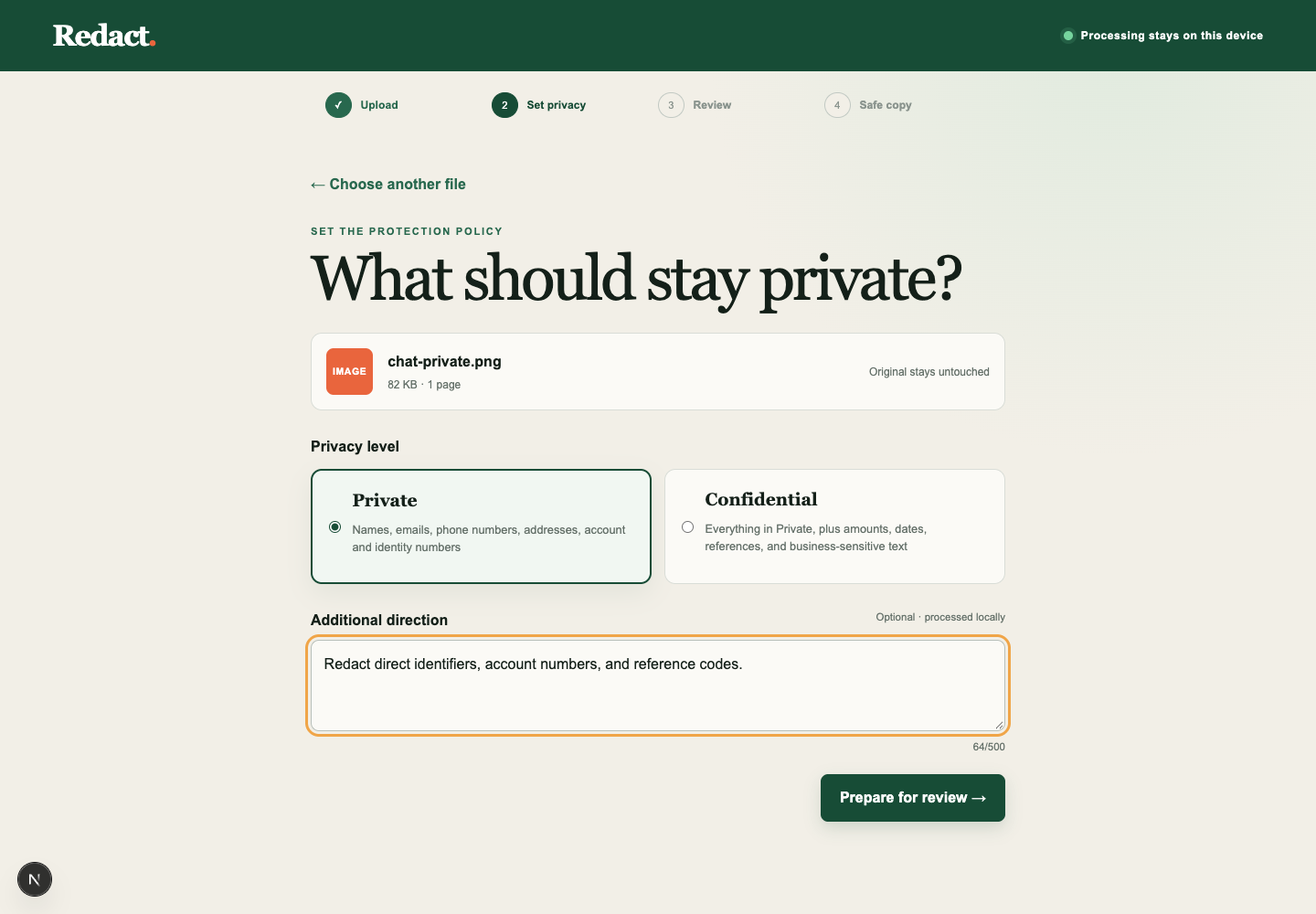 Select Prepare for review.
5. Wait for the first analysis
The screen shows Preparing locally while the page is read. The first time, QVAC downloads the OCR model and Laya, the decision model that suggests what to cover, about 550 MB in all, intoredact/.qvac/models, so expect a few minutes, depending on your connection.
Meanwhile the service terminal prints many [QVACRegistryClient] [INFO] Downloading blob… lines.
After the download it stays quiet unless something fails.
Later runs skip the download.
Reading one page then takes about 20–30 seconds.
6. Review the suggestions
The review screen opens with the original on the left and a Safe-share preview in the middle.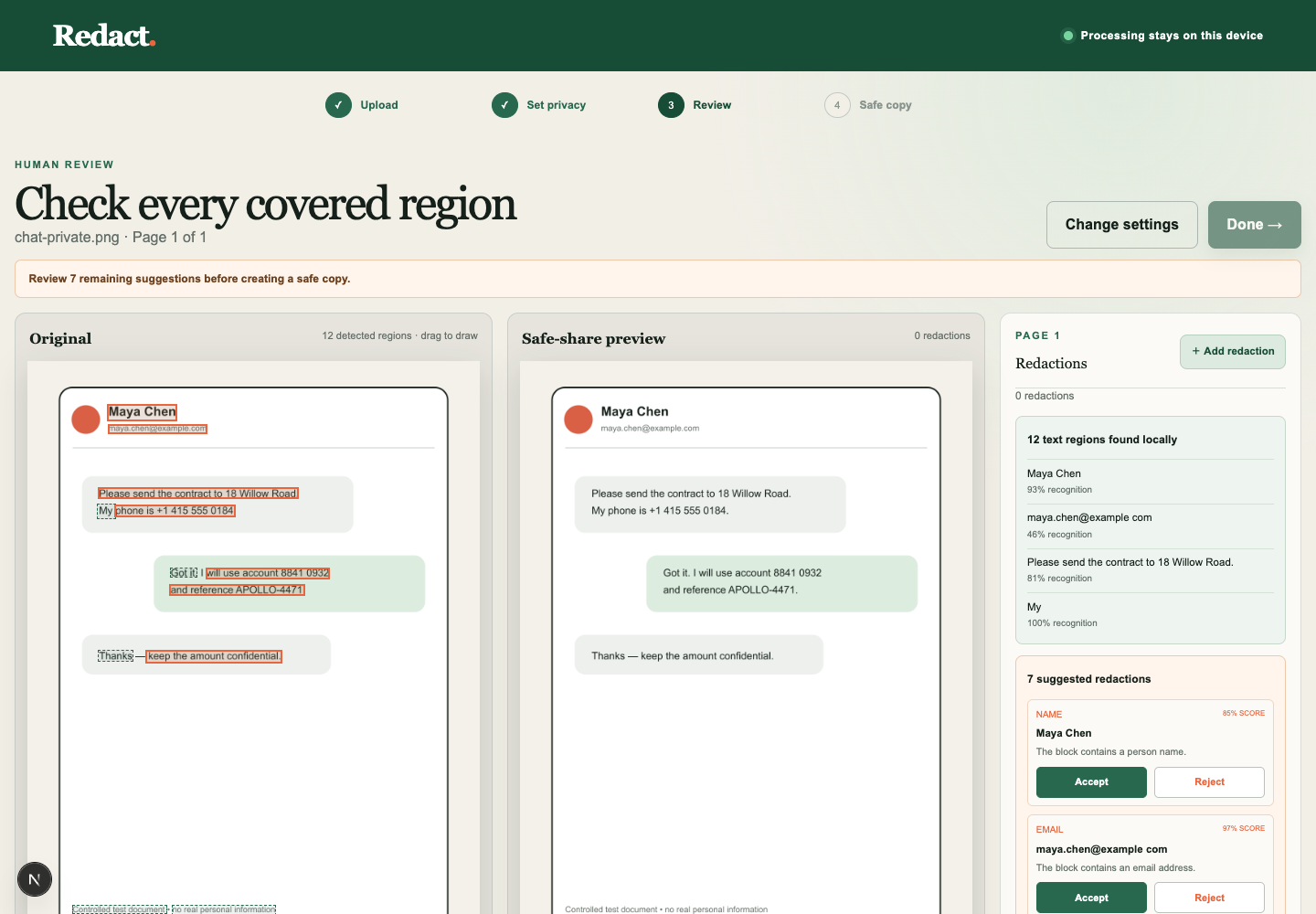 Notice three things:
- Every outlined box on the original is text that OCR found. The right panel says 12 text regions found locally.
- Under 7 suggested redactions are the name, email, address, phone number, account number and reference, plus
keep the amount confidential.labelled OTHER, which matched your direction. Each has a label, a score and the text it would cover. - Done is disabled. The banner says Review 7 remaining suggestions before creating a safe copy. Nothing is covered until you decide.
7. Save the copy
Select Done. The screen changes to Your safe copy is ready, and Redact reads the copy it just made, the same way it read the original. After about 25 seconds it lists what is still readable: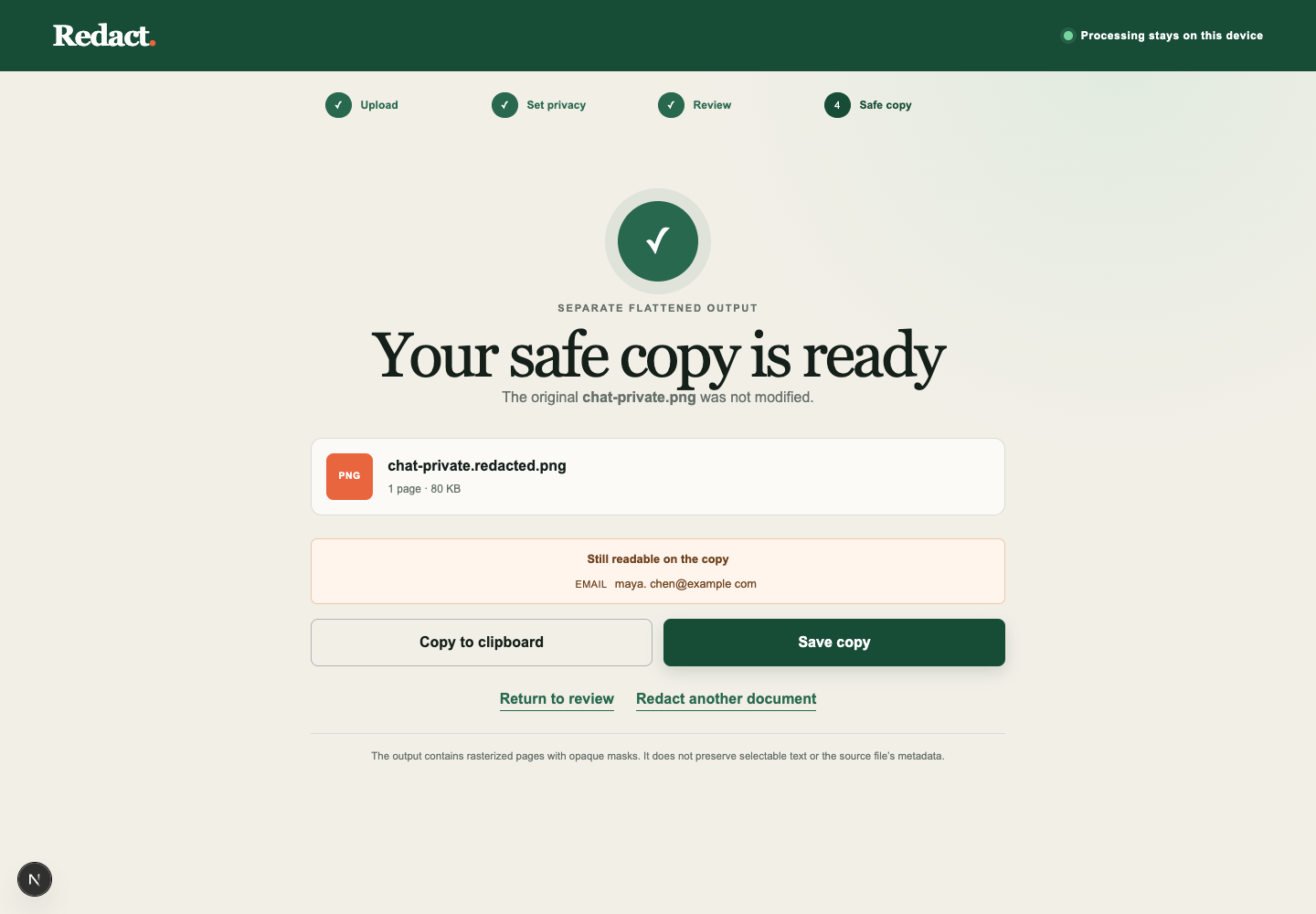 That’s the email we rejected.
The check is a reminder, not a block: you decided to keep the email, so Save copy stays enabled.
Select Save copy.
Your browser downloads
chat-private.redacted.png.
8. Check what you’ll share
Open the downloaded file outside the browser.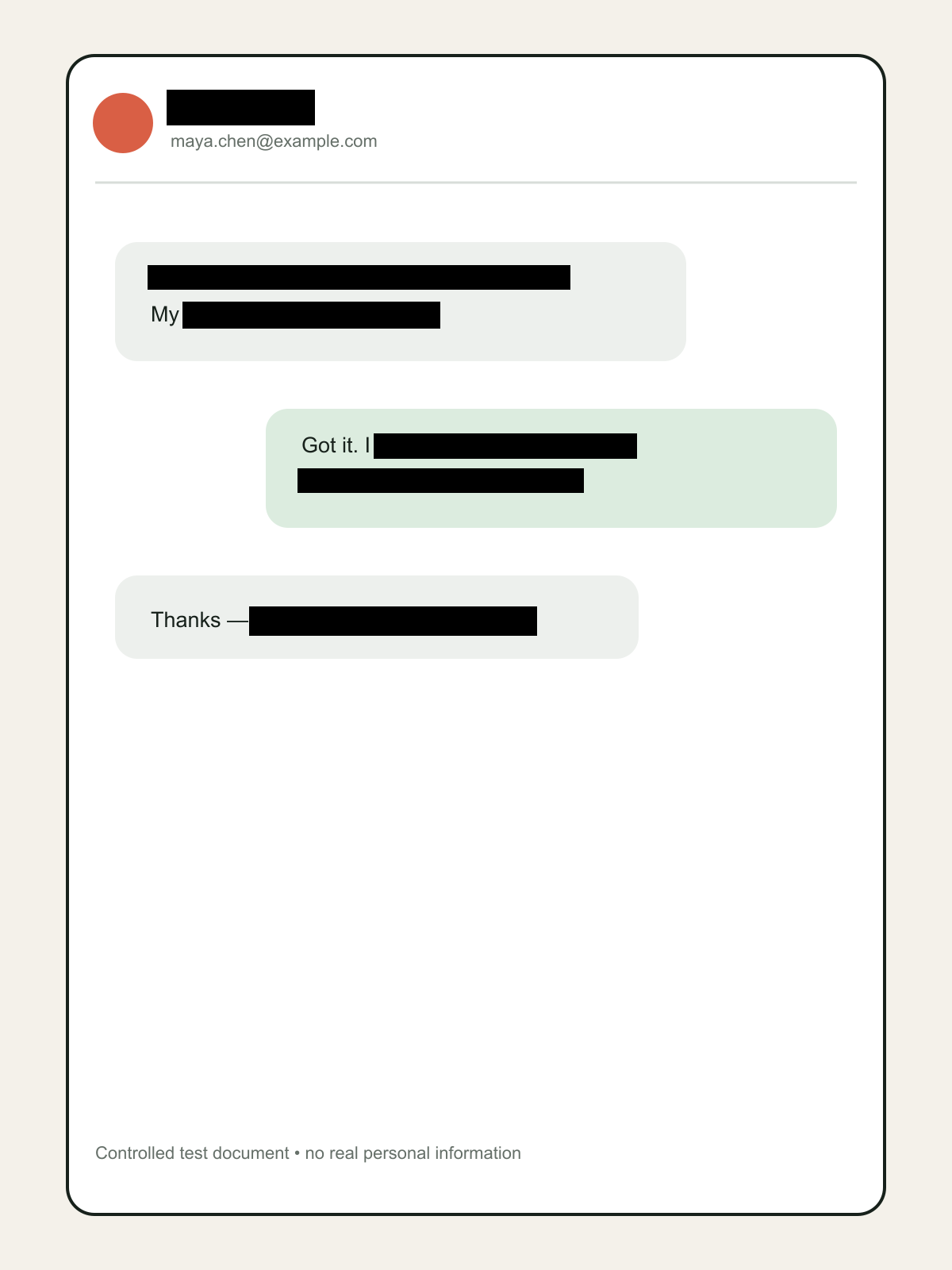 The name, address, phone number, account number, reference and the “amount” line are solid black.
The email is still there, because we rejected that suggestion.
The covered text is gone from the file itself: the copy is a new image, not the original with boxes drawn on top.
Now open
public/test-files/redact/chat-private.png again.
It’s unchanged.
So what did we just do?
We ran a privacy tool whose OCR and decision model both ran on our own machine, let it propose what to cover, overruled it once, and produced a flattened copy that contains only what we approved. To stop, pressCtrl+C in both terminals.
The models stay in redact/.qvac/models for next time.
Where to next
- Build this app yourself, starting from a version with no AI: Run the manual starter (lesson 01).
- Why a suggestion never covers anything on its own: About Redact’s trust boundary.